

A tour of the screens
The menu is split into Analysis (분석), News (소식), and Work (업무).
Analysis
Section titled “Analysis”| Menu | What you do here |
|---|---|
| Overview (오버뷰) | Check this week’s cash flow. See key signals. |
| Market Indicators (시장 지표) | Previous-day closing prices for KOSPI/KOSDAQ, bonds, and commodities |
| Cash Flow Forecast (현금흐름예측) | Check your upcoming balance trend and unusual transactions. |
| Asset Data (자산 데이터) | Manage bank, card, securities, lease, and insurance assets in one place. |
| Tag Analysis (태그분석) | Analyze spending and income by tag. Check budget status too. |
- Government Support Programs (정부지원사업) — Find support program announcements by field and region.
| Menu | What you do here |
|---|---|
| AI Agentbot (AI 에이전트) | Ask questions based on your company data. Create documents too. |
| Calendar (캘린더) | Check financial dates such as payment and maturity dates. |
| Projects (프로젝트) | Set a budget. Group transactions to manage costs. |
| Document Library (문서 보관함) | Upload files. Edit documents and train the chatbot. |
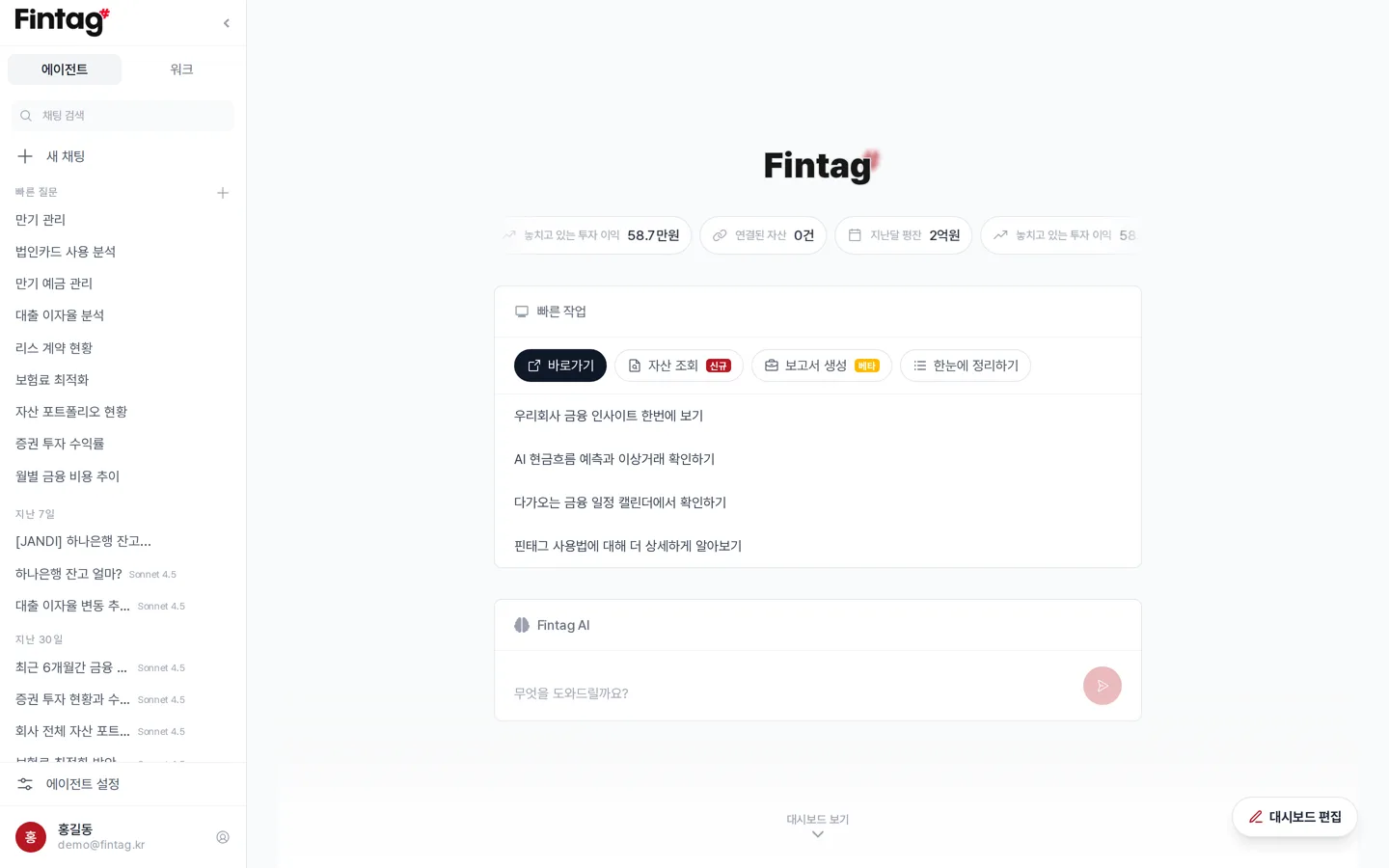
Home screen
Section titled “Home screen”Click the logo to go home. The home screen shows the following.
- Key figures such as the number of linked assets and last month’s average balance
- Quick Actions (빠른 작업) — Buttons that take you straight to features you use often
- AI input box — Type a question and it continues as a chat
- Widgets — Total assets, net assets, schedules nearing maturity, and more
Changing widgets
Section titled “Changing widgets”
Press Edit Dashboard to add or remove widgets.
How to reach Settings
Section titled “How to reach Settings”Click your name at the bottom left of the screen. On mobile, tap the Settings (설정) tab at the bottom.
The following menu opens.
- Account settings, Subscription / Top-up / Coupons
- Certificate Management (공동인증서 관리), Messenger Integration (메신저 연동), Transaction Tag Settings (거래 태그 설정), Agent Settings (에이전트 설정)
- 1:1 Inquiry, Announcements, Feedback and Bug Reports
- Manual, Restart Tutorial (튜토리얼 다시하기)
What is different in the mobile app
Section titled “What is different in the mobile app”| Feature | Mobile app |
|---|---|
| Digital certificate linking | Not available — must be done on a PC |
| Subscription and payment | Not available — must be done on the web |
| Dashboard widget editing | Not available |
| Viewing assets and transactions, AI agent | All available |
Viewing the first-time screen guide
Section titled “Viewing the first-time screen guide”The first time you visit a screen, a guide to its main features runs automatically.
To see it again, press Restart Tutorial in the Settings menu. This feature is available on a PC only.