

Linking your digital certificate
This is the key step that automatically imports bank, card, and securities transactions. Certificate linking is available on a desktop PC only.
Procedure
Section titled “Procedure”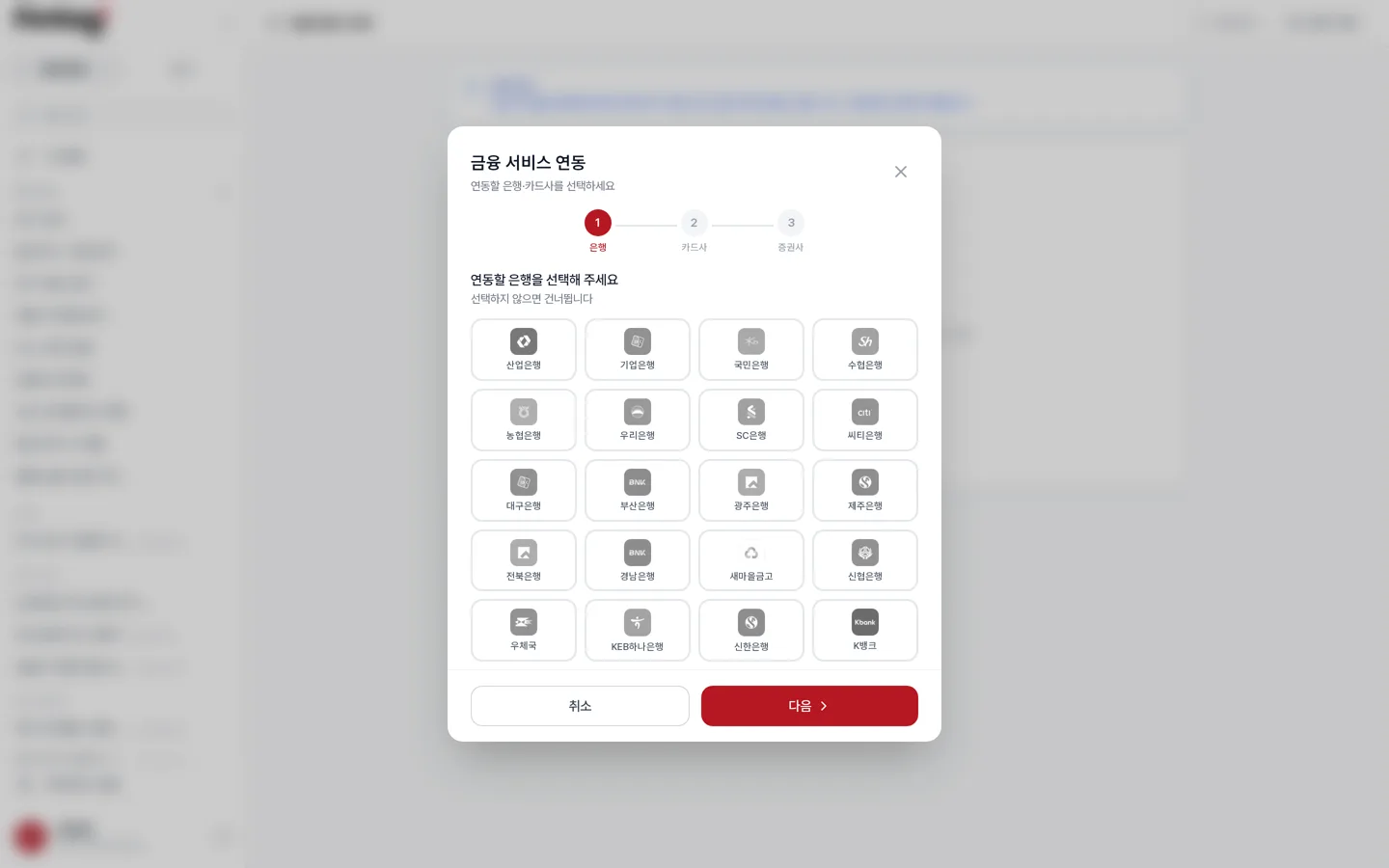
- Open Certificate Management (공동인증서 관리) — Click your name at the bottom left and select Certificate Management. On mobile, go to Settings and then Certificate Management.
- Click Link Certificate (인증서 연동) — Use the button in the center or at the top right. The screen has two tabs, Certificate (공동인증서) and ID/Password (아이디·비밀번호), so linked institutions are grouped by method.
- Select banks — Choose the banks to import, then press Next.
- Select card issuers — Choose the card companies to import, then press Next.
- Select brokerages — If you have investment accounts, choose the brokerages too, then press Next.
- Enter ID login details — Needed only for institutions that do not support certificate login.
- Install the certificate engine — Press Download Engine (엔진 다운로드) to install the security module.
- Load the certificate — Press Load certificate from PC, select the certificate file (.pfx or .p12) from your computer or USB drive, enter the certificate password, and click Start Linking.
Institutions without certificate support
Section titled “Institutions without certificate support”Some institutions, such as Samsung Card and Hana Card, do not support certificate login. For those, use the ID/Password tab at the top of the card issuer or brokerage selection step and enter the credentials for that institution’s website.
If you run multiple businesses, enter the business registration number to manage each business separately.
After linking
Section titled “After linking”- Assets are collected in the background with a progress notification at the top. Data import finishes first, then AI training follows, and you are notified at each step.
- From then on, data is refreshed automatically at a set time each day. For an immediate update, press Refresh on the assets screen or in Certificate Management.
- Linking status, link date, and the number of cards and accounts are shown as cards, along with each account’s registration date and available lookup period.
- A warning banner appears as the certificate nears expiry. Link again with a new certificate at that point.
Before you unlink
Section titled “Before you unlink”Pressing Unlink shows two confirmation dialogs, and confirming deletes all financial data collected with that certificate (deposits, loans, cards, securities, and transactions). If you only need fresh data, use Refresh instead.
Spending already added to a project is kept as a snapshot even if the source transaction is deleted, and is automatically re-linked when the same transaction is imported again.