

Your assets at a glance
Asset Data (자산 데이터) shows your company’s financial assets at a glance. Data from the institutions you have linked is collected here as well.
Screen layout
Section titled “Screen layout”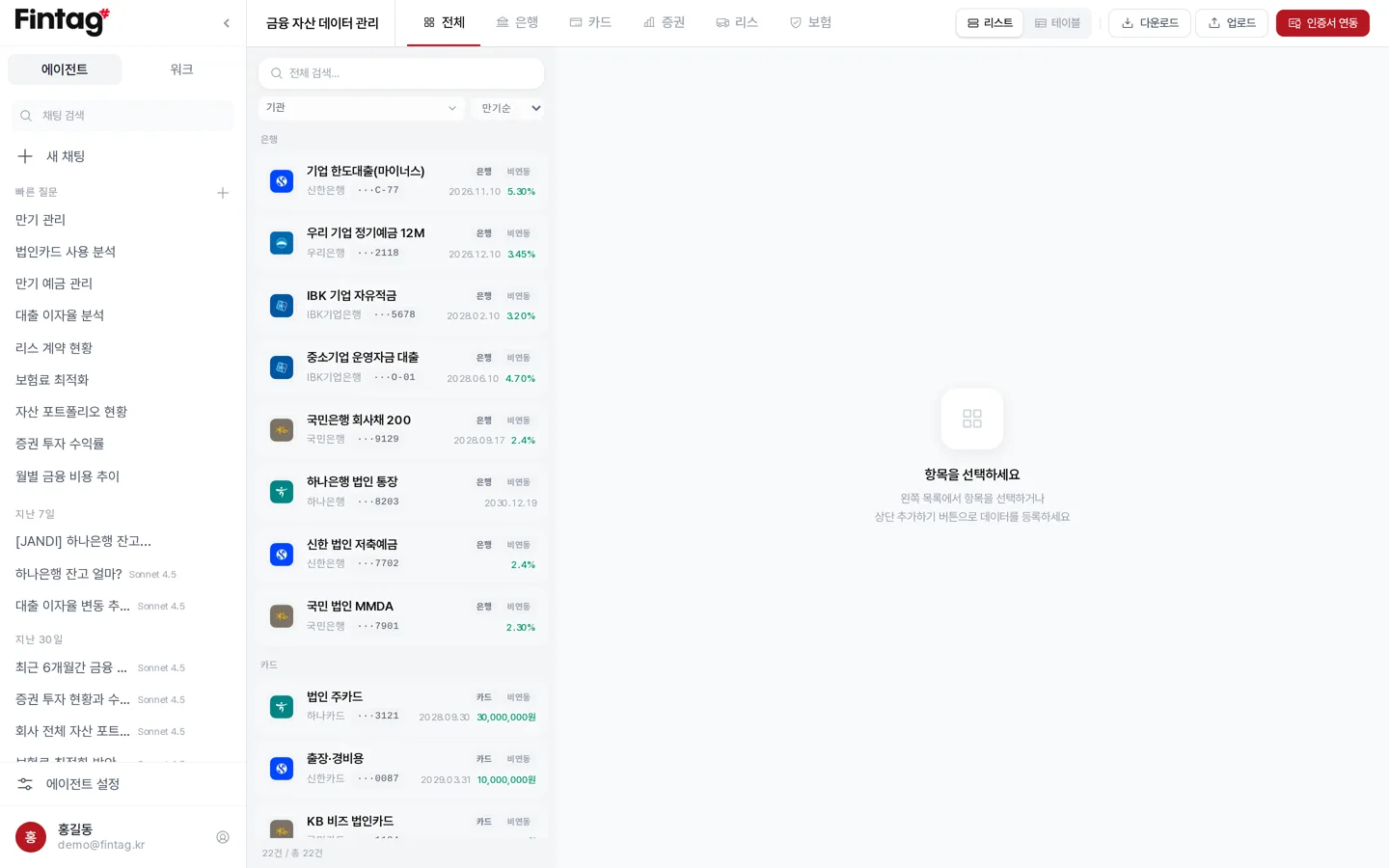
- Tabs at the top: All / Bank / Card / Securities / Lease / Insurance
- Left: the asset list. You can search, filter by institution, and sort.
- Sort options: by maturity, institution name, return rate, and more
- Right: details of the selected asset
- Choose between list and table view
Assets close to maturity are marked with a label such as D-30.
What you can do in the asset details
Section titled “What you can do in the asset details”- Edit — Change the alias and the contact person.
- For linked accounts, you can edit only the fields that are not financial data, such as balance and interest rate.
- History — Review the record of balance changes.
- Review the automatic sync records.
- Review the record of information edits.
- Attachments — Attach files such as contracts and policies to the asset.
Adding an asset without linking
Section titled “Adding an asset without linking”Press Add (추가하기) to register an asset by entering its details yourself.
For banks, you must choose between financing (loans) and fund management (deposits).
For products with no maturity, turn on “No maturity”.
Registering from a document
Section titled “Registering from a document”Press Upload (업로드). Choose the document type (card, loan, deposit, insurance, lease, securities, transaction history, or general document). Upload the file and the AI reads its contents. The AI then registers it as an asset.
- Supported formats: PDF, Excel, HWP, Word, images
- Up to 20MB per file
Refreshing the data
Section titled “Refreshing the data”
- On the Bank tab, press Refresh Data (데이터 새로고침) to pull the latest data.
- On the Card tab, press Refresh Card Transactions (카드 거래내역 새로고침) to pull the latest data.
- To link a new financial institution, press Link Certificate.
Downloading transactions as Excel
Section titled “Downloading transactions as Excel”Press Download (다운로드) to request an Excel file for the accounts and period you select.
- Set the lookup period. The default is the last year.
- Choose accounts from bank, card, and securities.
- Press Request Download (다운로드 요청) and we will prepare the file and email you a link.
Files are kept for 14 days after they are created. They are deleted automatically after that.
Try it for
Section titled “Try it for”- Getting a year of transactions per account to send to your accountant
- Sorting by maturity to see which products expire this quarter
- Attaching a loan contract to its asset so you can look up the terms right away